Record the meeting. Get it typed out.
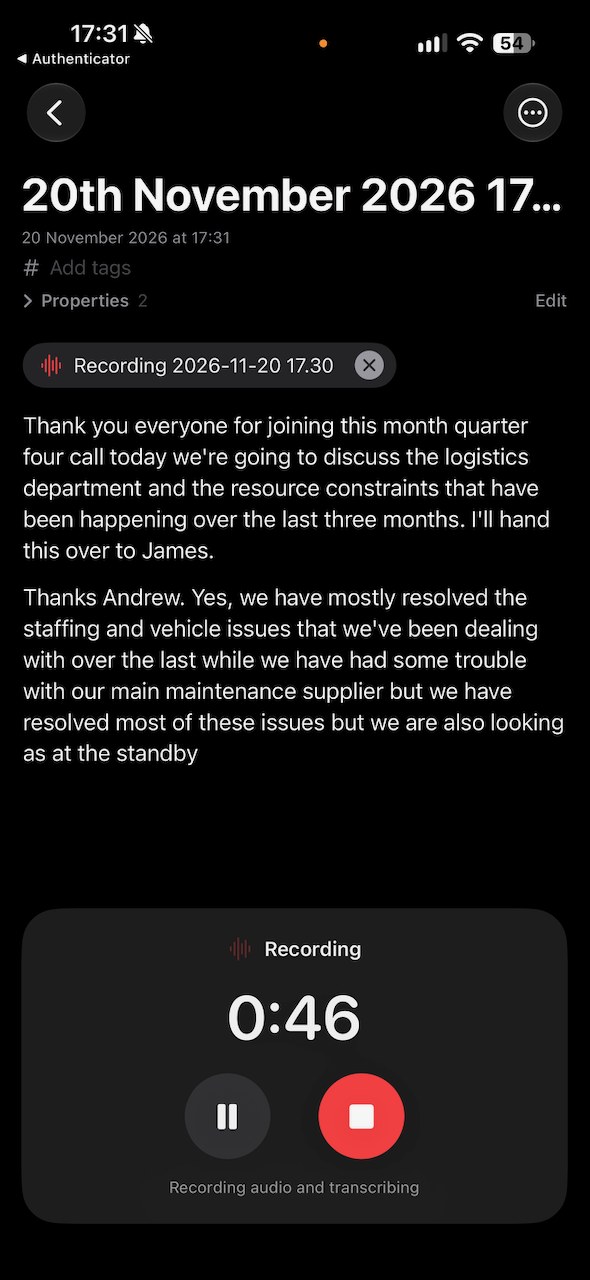
Tap the red microphone and NoteSweep listens and types out what's said, straight into a page, while people are still talking. Put your iPhone on the table and get on with the meeting.
- Start from the home screen. Turn on Recorder for a Library and its card gets a red record button. Each tap makes a new page in your recordings folder, named with the date and time in the style you choose
- Or record into any page. Every page has the record button at the top. The words go at the end, after a date and time line, so nothing already there is touched
- A clear recording panel. A large clock, Pause and Stop sit at the bottom of the screen, with a line saying whether it's recording audio and transcribing, or paused. The words appear above it as they're spoken
- Paragraphs as people pause. A short pause carries on the same paragraph; a longer one starts a new one
- Pause and carry on. Resume picks up in the same recording; Stop finishes it, and the record button starts another whenever you like
- Keeps going. The screen stays on, it carries on with the iPhone locked or another app open, and after a phone call it picks up again by itself
- The audio is kept too. Saved as a small audio file in your attachments folder, the page's folder or a folder you choose, and shown in the page as a bubble with its length. Tap to play it, or ✕ to delete it
- A title from what was said. With Apple Intelligence, NoteSweep can suggest a title for the recording, keeping its date
Speech is turned into text on your iPhone where the language allows, and the notes are plain Markdown in your own storage, ready for your AI assistant to summarise or pull the actions out of.
Set up in a Library's settings
Manage Accounts › your Library › Recorder: choose the recordings folder (or make a new one), how recordings are named, and whether and where to keep the audio.
Your notes on your wrist
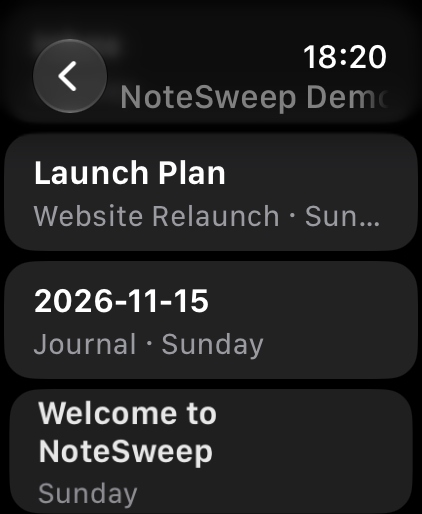
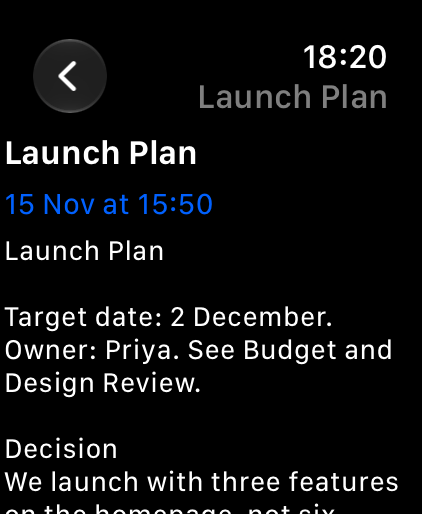
Glance at what you've been working on without reaching for your phone.
- Your Libraries in their own colours
- Each Library's most recently changed pages, with their folder and when they changed
- Tap a page to read it, with checklists and bullets as they look on your iPhone
- Works when your iPhone isn't nearby: the watch keeps the latest it was sent
Recent pages and your Libraries, one tap apart
Recents shows the pages you've been working on, newest first. Libraries shows all your notes, grouped by where they're stored.
- See recent pages as cards, a list, or a week or month calendar
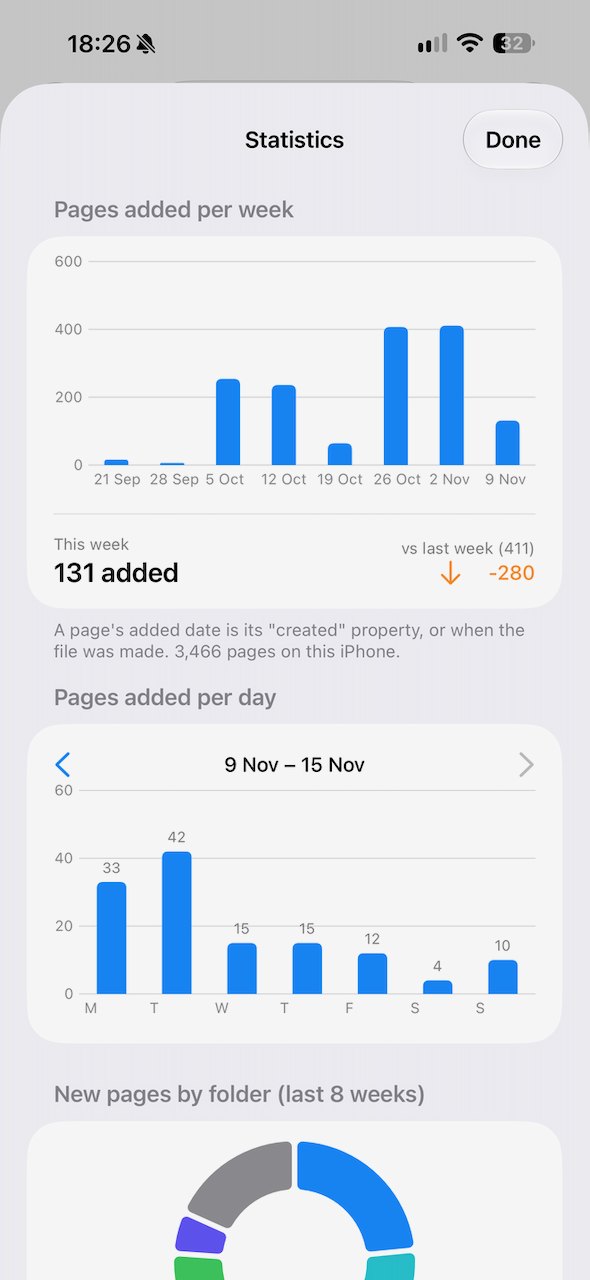
- Statistics show how many pages you add each week, and which notebooks they go into
- Star pages and folders as Favourites to keep them close
- Opening a big library for the first time? Start browsing straight away while the rest downloads
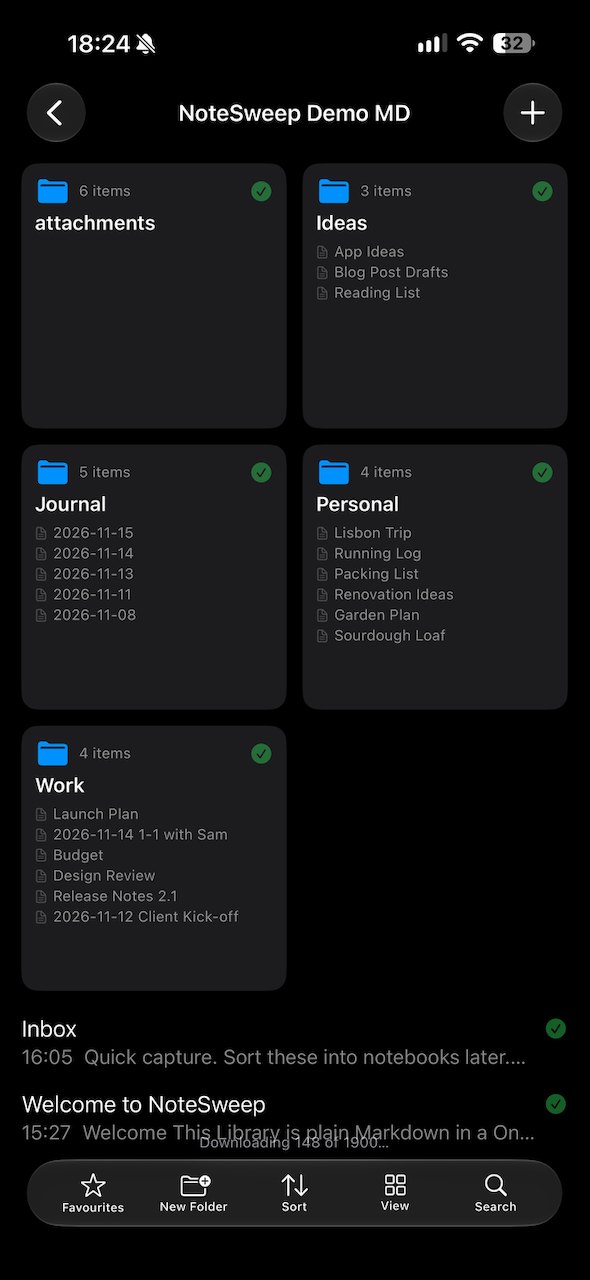
A bar you arrange
A glass bar at the bottom of each folder holds Favourites, New Folder, Sort, View and Search. Rearrange it, or hide what you don't use, in Settings.
Your folders, as notebooks
Each folder in your library becomes a notebook, the folders inside it become sections, and every note is a page.
- A cloud, a spinner or a soft green tick shows what's on your iPhone
- Pull down anywhere to sync
- Show folders and pages as a list, or as tiles with their latest pages
- Pin important pages and folders to the top
- Hide folders you don't need to see
- Select several pages to move or delete them together
- New pages go straight into the folder you're in
Open a page and start typing
Pages open ready to edit and look finished as you type: headings, bold, highlights, lists, checklists, tables and pictures, with no symbols in the way.
- A toolbar above the keyboard for formatting, checklists, tables, links, photos and files
- Tick off checklists with a tap
- Everything saves as you type
- Print a page, send a copy, or move it from the page's menu
- Prefer plain text? Switch to the Markdown view any time
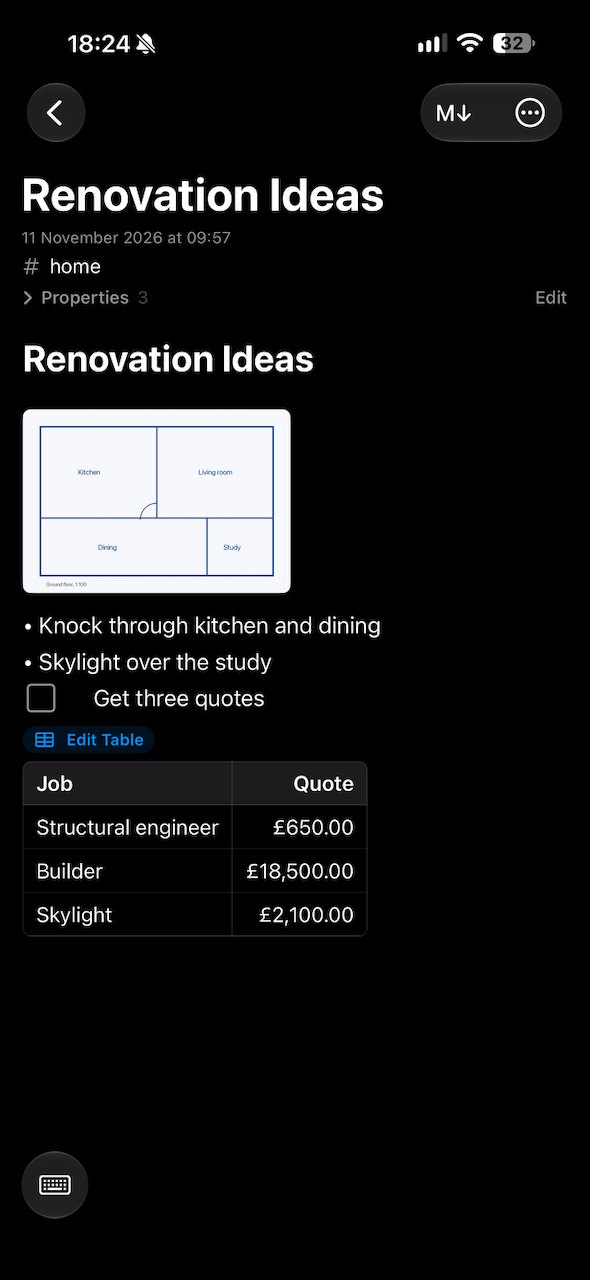
Tidy Converted Page
Notes brought over from OneNote or copied from the web can come with clutter. One tap tidies them up, and you can undo it.
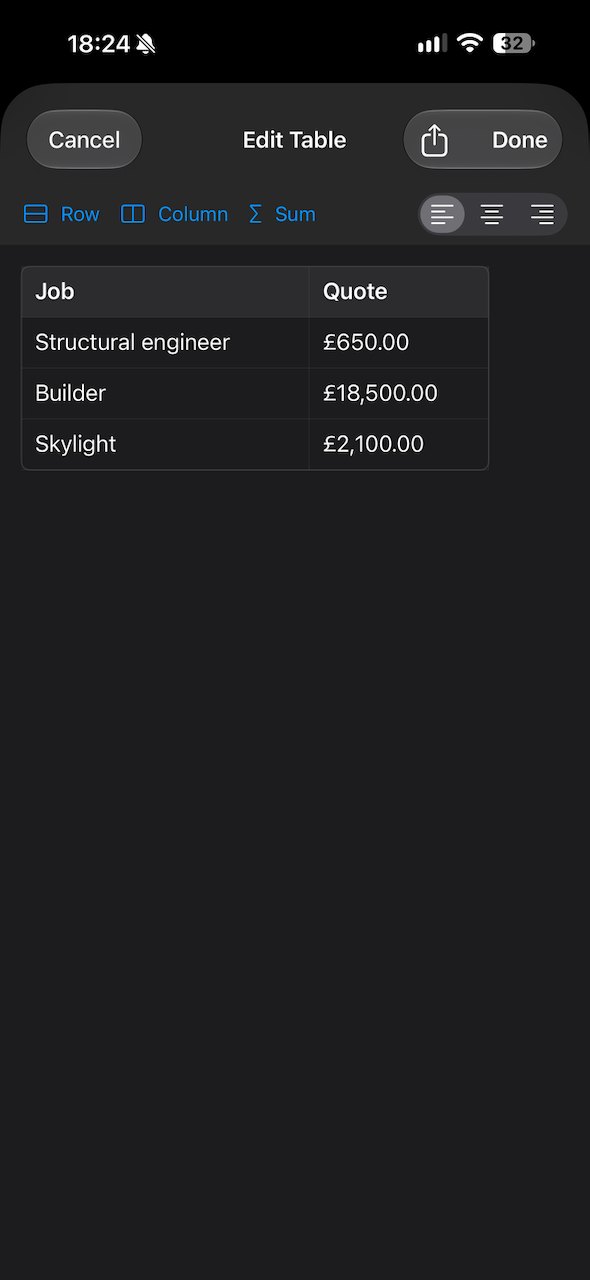
Tables that add up
Edit tables in a proper table builder, then send them on to a spreadsheet.
- Add, move and delete rows and columns
- Sort by any column
- Show amounts as currency or percentages, and add a totals row
- Send a table to Excel, Numbers or Google Sheets
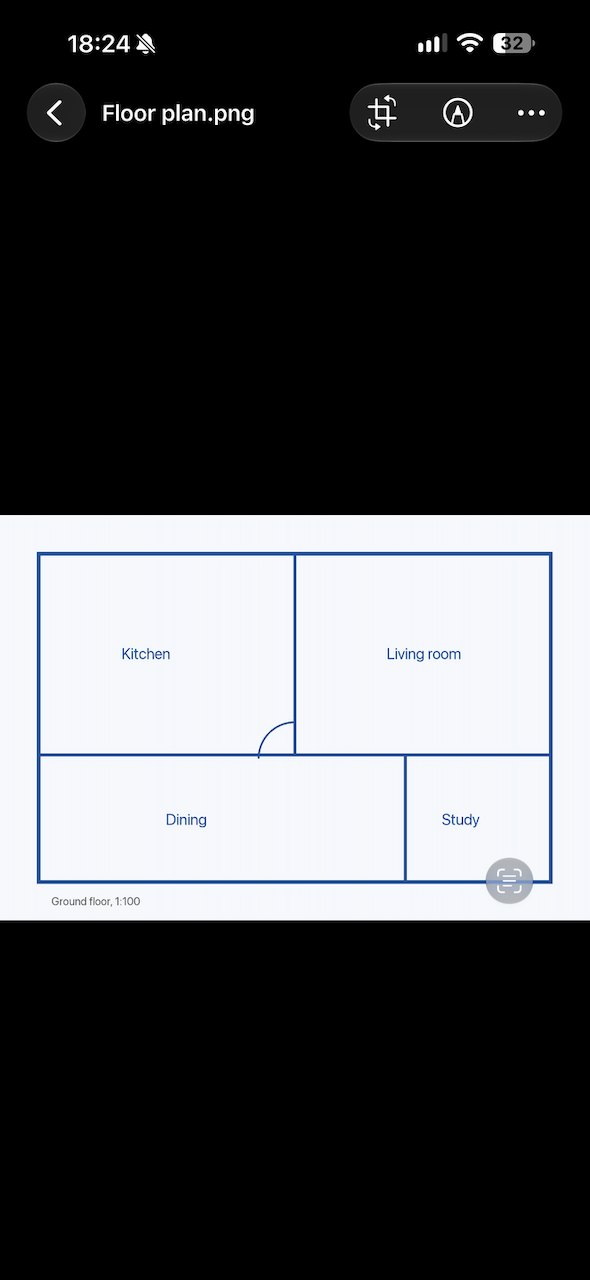
Mark up a picture, crop it, copy its text
Tap a picture to see it full screen, and swipe to the other pictures on the page.
- Draw, circle and highlight with your finger or Apple Pencil
- Crop and rotate
- Copy the text out of a picture
- Your original picture is always kept, so you can change your mind later
Notes that look the way they should
Notes written in any Markdown app look just as they do on your computer.
- Headings, lists, checklists, tables, quotes and code
- Links between pages: tap one to jump straight there
- Pictures and files shown right in the page
- Coloured callout boxes, highlights and footnotes
- Tags: tap one to see every page with that tag
Keep your favourite apps
Carry on with your favourite Markdown app on your computer. NoteSweep uses the same files, so everything stays in step.
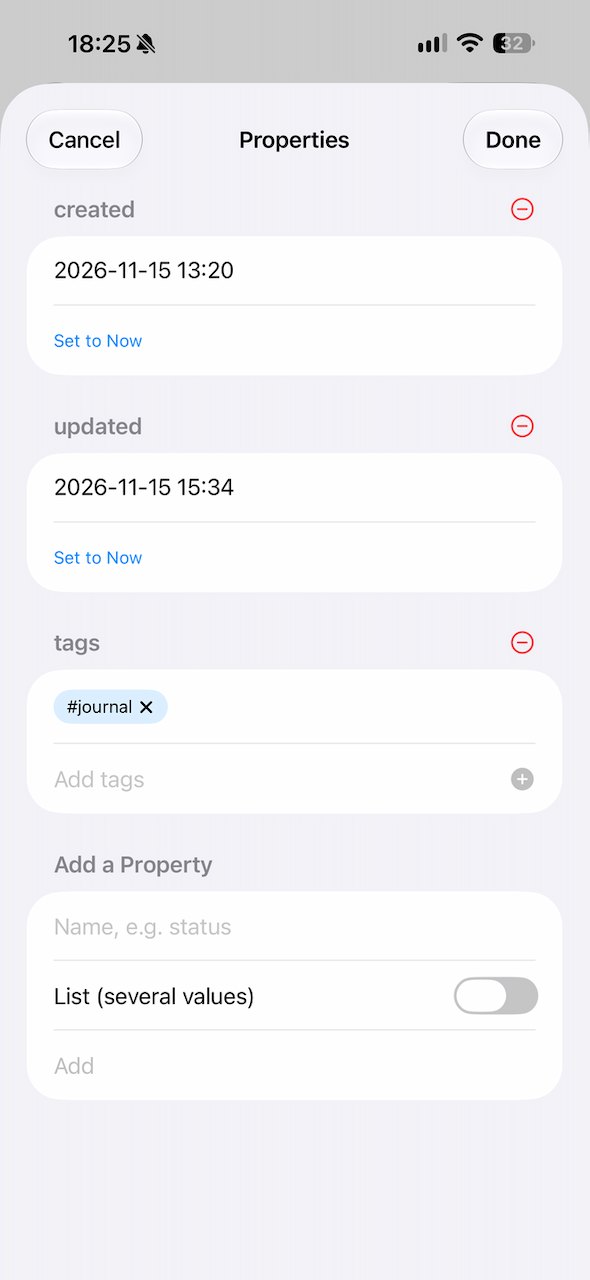
Dates and tags, made easy
Pages can carry details such as when they were created and their tags. Open Properties under the title to see them, and tap Edit for a simple form.
- Set a date to now with one tap
- Add or remove tags
- Add your own details, like a status or a client
- Each page can note when it was last updated, automatically
Photos and files, right in your notes
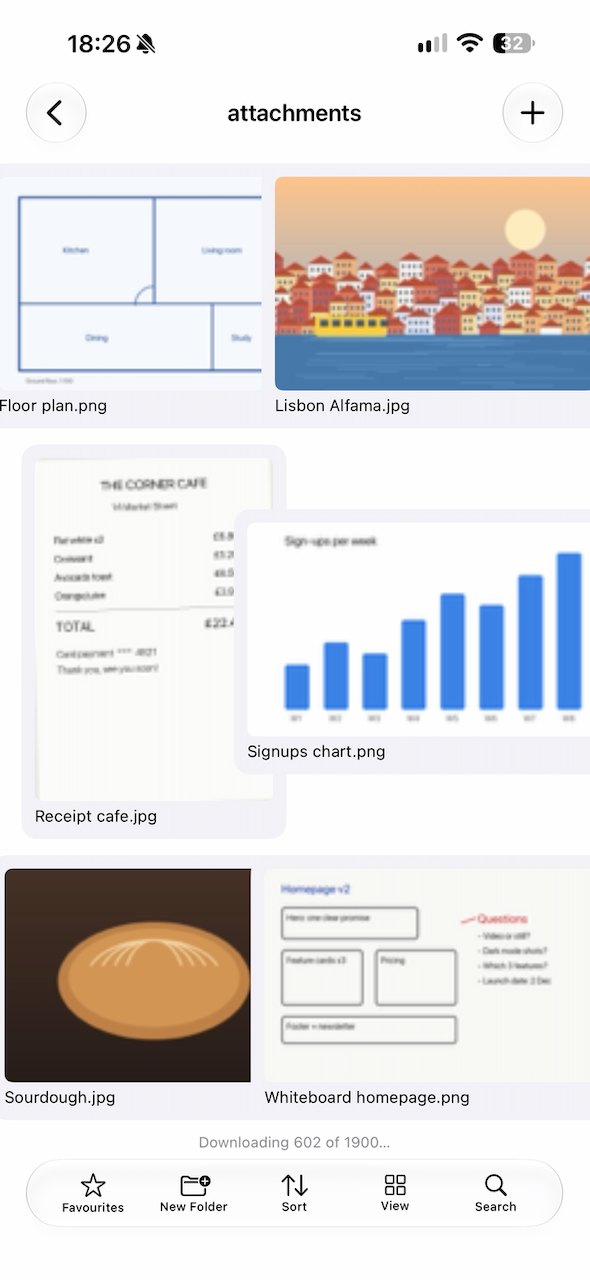
Add photos, scans and files to any page. They're saved in your library's attachments folder, so your computer finds them too.
- Add from Photos, the camera, Files or the clipboard
- Share to NoteSweep from any app to save a web page, photo or document as a new page
- Open PDFs, Office documents, audio and video right in the app
Find anything
Search page titles and the words inside your pages.
- Recent searches are kept, so you can run them again
- Tap a tag to see every page with that tag
- Your pages show up in iPhone search, and Siri can open them for you
Search
In the app, in iPhone search, and with Siri.
Set up once, kept safe
Your settings and favourites are backed up to iCloud and follow you to your other devices.
- Light or dark, and the text size you like
- Recycle Bin keeps deleted pages for 30 days
- History shows what changed and when
- Disk Usage shows how much space your notes take
- Choose whether pictures and files download straight away or when you open them
- On iPad, your notebooks and pages side by side
Private
Your sign-ins stay on your device. Nothing goes through a NoteSweep server.
Where do my notes live?
In your own cloud storage. See which services NoteSweep works with and how it keeps your notes in sync.
Storage and sync